47 Spreadsheet Keyboard Shortcuts — Searchable Cheat Sheet
Every shortcut an office worker actually uses, in one table. Search, filter by category, or print the free PDF.
- 47 shortcuts
- Windows · Mac (Ctrl→Cmd)
- Free PDF · no sign-up
| Category | Shortcut | What it does | Tip |
|---|---|---|---|
| Navigate & select | Ctrl + Arrow key | Jump to the edge of the data region | Bottom of a long list: Ctrl+Down |
| Navigate & select | Ctrl + Shift + Arrow key | Select from the current cell to the edge of the data | Select a whole column of data: Ctrl+Shift+Down |
| Navigate & select | Ctrl + Home / Ctrl + End | Go to A1 / the last used cell | Quick way to see how big a table is |
| Navigate & select | Ctrl + A | Select the current table (press again for the whole sheet) | |
| Navigate & select | Shift + Space / Ctrl + Space | Select the entire row / entire column | Then Ctrl+- to delete it |
| Navigate & select | Ctrl + PgUp / PgDn | Previous / next sheet | A must for workbooks with many tabs |
| Navigate & select | Ctrl + G (or F5) | Go To dialog (jump to a cell or name) | Select blanks only: Special > Blanks |
| Enter & edit | F2 | Edit the active cell (see its formula) | Faster than double-clicking |
| Enter & edit | Alt + Enter | New line inside a cell | Addresses, multi-line notes |
| Enter & edit | Ctrl + Enter | Fill all selected cells with the same entry | Select range > type > Ctrl+Enter |
| Enter & edit | Ctrl + D / Ctrl + R | Fill down / fill right from the cell above / left | Fastest way to copy a formula |
| Enter & edit | Ctrl + ; | Insert today's date | Ctrl+Shift+; inserts the current time |
| Enter & edit | Ctrl + E | Flash Fill (detects the pattern for you) | Split or join first/last names |
| Enter & edit | Alt + Down | Open a drop-down list / pick from column values | Repeated entries |
| Enter & edit | Ctrl + Z / Ctrl + Y | Undo / redo | |
| Enter & edit | F4 | Repeat last action; while editing a formula, toggle $ references | A1 > $A$1 > A$1 > $A1 |
| Enter & edit | Esc | Cancel the entry or formula you're typing | Back out of a mistyped formula |
| Formulas & data | Alt + = | Insert AutoSum (SUM) | Use in the cell below the numbers |
| Formulas & data | Ctrl + Shift + L | Turn filters on / off | Turning off clears all filter criteria |
| Formulas & data | Ctrl + T | Convert the range to a table | Auto-expands, structured references |
| Formulas & data | Ctrl + ` | Show / hide all formulas | Great for reviewing a sheet |
| Formulas & data | F9 | Recalculate (while editing: evaluate the selected part) | Useful in manual calculation mode |
| Formulas & data | Shift + F3 | Insert Function dialog | When you forget the arguments |
| Formulas & data | Ctrl + Alt + V | Paste Special (values only, formats only...) | Values only: then V > Enter |
| Formulas & data | Ctrl + Q | Quick Analysis (totals, charts, conditional formats) | Select a range first |
| Formulas & data | Ctrl + F / Ctrl + H | Find / replace | Use Replace to strip extra spaces |
| Format | Ctrl + 1 | Format Cells dialog | The most-used formatting shortcut |
| Format | Ctrl + B / I / U | Bold / italic / underline | |
| Format | Ctrl + Shift + $ | Currency format (2 decimals, negatives in parentheses) | |
| Format | Ctrl + Shift + % | Percentage format (no decimals) | |
| Format | Ctrl + Shift + # | Date format (day-month-year) | Fix dates that show up as numbers |
| Format | Ctrl + Shift + ~ | General number format | |
| Format | Ctrl + Shift + & | Add an outline border | Ctrl+Shift+_ removes borders |
| Format | Ctrl + 5 | Strikethrough | Cross off finished items |
| Format | Alt > H > O > I | AutoFit column width (press one after another) | Alt, H, O, A = AutoFit row height |
| Rows, cols & sheets | Ctrl + Shift + + | Insert rows / columns / cells | With a row selected it inserts instantly |
| Rows, cols & sheets | Ctrl + - | Delete rows / columns / cells | |
| Rows, cols & sheets | Ctrl + 9 / Ctrl + Shift + 9 | Hide rows / unhide rows | |
| Rows, cols & sheets | Ctrl + 0 | Hide columns | To unhide: select columns > right-click > Unhide |
| Rows, cols & sheets | Shift + F11 | Insert a new sheet | |
| Rows, cols & sheets | Alt + F1 / F11 | Chart on this sheet / chart on a new sheet | Select the data first |
| Rows, cols & sheets | Shift + F2 | Add / edit a cell note (comment) | |
| File | Ctrl + S / F12 | Save / Save As | |
| File | Ctrl + N / Ctrl + O / Ctrl + W | New / open / close | |
| File | Ctrl + P | Print preview and print | Ctrl+F2 does the same |
| File | Ctrl + K | Insert hyperlink | |
| File | F7 | Spell check |
Shortcuts for desktop spreadsheet apps on Windows. On a Mac, most work by swapping Ctrl for Cmd. Some keys may differ by app, version or keyboard layout.
How this cheat sheet works
The table lists 47 shortcuts in six groups — navigate & select, enter & edit, formulas & data, format, rows/columns/sheets, and file. We kept the keys an office worker reaches for every day and left out rarely used or add-in shortcuts, so the whole list fits on a two-page PDF.
Keys are the Windows defaults for desktop spreadsheet apps such as Excel and LibreOffice Calc. On a Mac, most work by swapping Ctrl for Cmd. The list was compiled with AI tools (noted in the footer), so check a key in your own app version before you rely on it, and report a wrong key through the contact link.
Limits: shortcuts can change with the app version, keyboard layout or language settings, and laptops may need the Fn key for F1–F12. In browser-based spreadsheets the browser can take some keys first (for example Ctrl + W or Ctrl + N). The search box filters the table in your browser; nothing you type is sent anywhere.
Questions
Do these shortcuts work on a Mac?
Most do if you swap Ctrl for Cmd — Cmd + C to copy, Cmd + Z to undo. Function-key shortcuts such as F2 or F4 may need the Fn key, and a few keys differ by app, so check the app's own shortcut list if one does nothing.
Do they work in Google Sheets or LibreOffice Calc?
Many of the everyday ones (copy, paste, undo, bold, find, Ctrl + Arrow to jump) are the same. Others differ or are missing. In Google Sheets, press Ctrl + / to open its own shortcut list.
Is the PDF really free?
Yes. The two-page PDF downloads directly with no sign-up or email. Switch the page to 한국어 to download the Korean edition.
Why does a shortcut do nothing on my keyboard?
The usual causes are a laptop Fn lock on the F1–F12 keys, a non-US keyboard layout, an older app version, or another program using the same key combination. Try it in a fresh workbook to rule out add-ins.
이 단축키 표는 이렇게 만들었습니다
표에는 단축키 47개를 이동·선택, 입력·편집, 수식·데이터, 서식, 행·열·시트, 파일 6묶음으로 정리했습니다. 사무직이 매일 쓰는 키만 남기고 드물게 쓰거나 추가 기능이 필요한 키는 빼서 2쪽 PDF 한 장에 들어가게 했습니다.
키는 Excel·LibreOffice Calc 같은 데스크톱 스프레드시트 앱의 Windows 기본값입니다. Mac 에서는 대부분 Ctrl 을 Cmd 로 바꾸면 됩니다. AI 도구로 정리했으므로(하단 표기) 쓰시는 앱 버전에서 한 번 확인해 주시고, 틀린 키는 문의 링크로 알려 주세요.
한계: 앱 버전·자판 배열·언어 설정에 따라 키가 다를 수 있고, 노트북은 F1~F12 에 Fn 키가 필요할 수 있습니다. 웹 브라우저용 스프레드시트에서는 브라우저가 일부 키(예: Ctrl + W, Ctrl + N)를 먼저 가져갑니다. 검색창은 브라우저 안에서만 표를 거르며 입력값을 보내지 않습니다.
자주 묻는 질문
Mac 에서도 되나요?
대부분 Ctrl 을 Cmd 로 바꾸면 됩니다(복사 Cmd + C, 실행 취소 Cmd + Z). F2·F4 같은 기능키는 Fn 키가 필요할 수 있고 앱마다 다른 키가 몇 개 있으니, 안 되면 그 앱의 단축키 목록을 확인하세요.
Google 스프레드시트나 LibreOffice Calc 에서도 되나요?
복사·붙여넣기·실행 취소·굵게·찾기·Ctrl + 방향키 이동 같은 기본 키는 같습니다. 나머지는 다르거나 없을 수 있습니다. Google 스프레드시트에서는 Ctrl + / 로 단축키 목록을 열 수 있습니다.
PDF 는 정말 무료인가요?
네. 2쪽 PDF 를 가입·이메일 없이 바로 내려받습니다. 화면을 EN 으로 바꾸면 영어판을 받을 수 있습니다.
단축키를 눌러도 아무 일이 없어요.
노트북의 Fn 잠금(F1~F12), 미국식이 아닌 자판 배열, 오래된 앱 버전, 같은 키를 쓰는 다른 프로그램이 흔한 원인입니다. 추가 기능 영향을 빼려면 새 통합 문서에서 시험해 보세요.
Stop rebuilding the same sheets every month
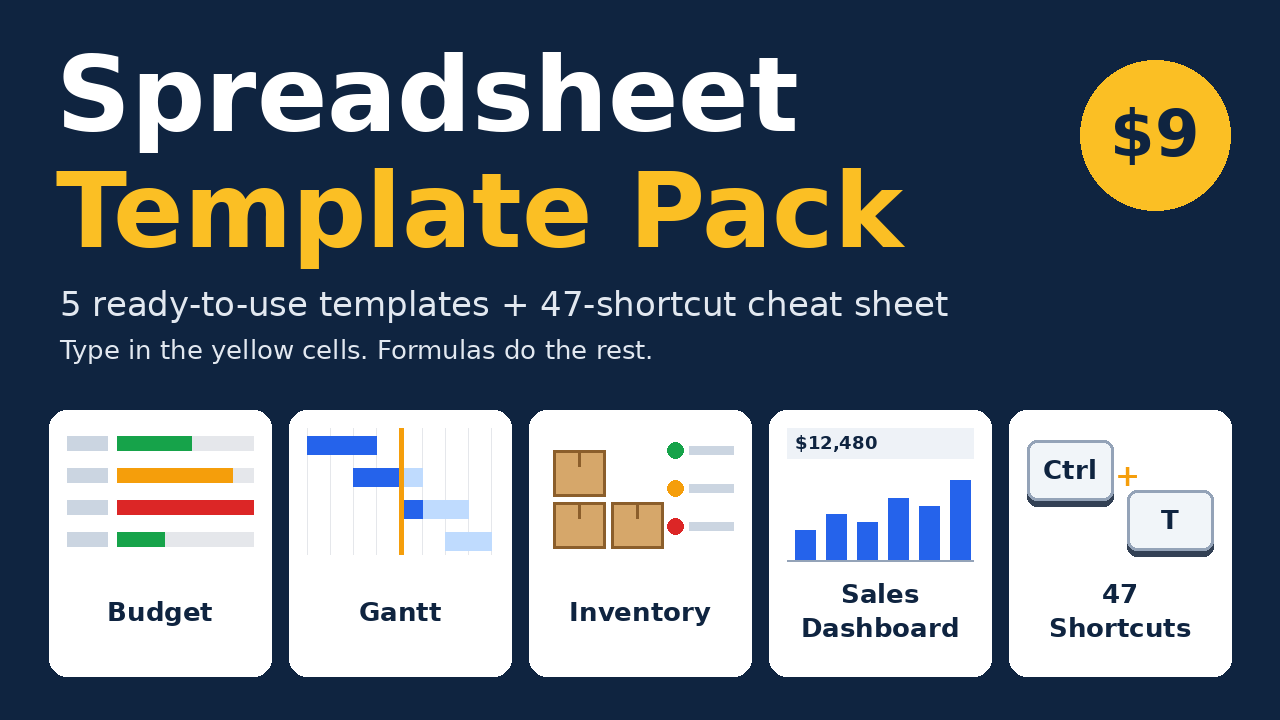
Budget, project Gantt, inventory and sales dashboard templates with formulas already in place — plus this cheat sheet as an editable workbook with a progress tracker. One-time $9.
Get the template pack — $9